Google Tag Manager Head and Body code
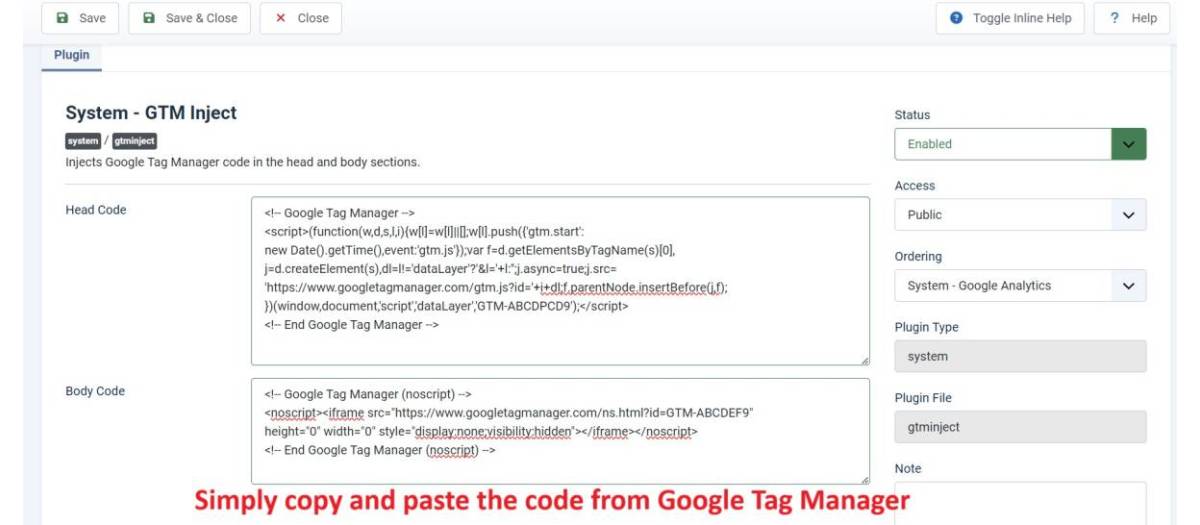
Functionality:
?Not deleted when you update Joomla Versions: It will not overwrite when you update Joomla versions. Head and body codes remains intact.
?Effortless Setup: No coding required. Simply copy and paste your Google Tag Manager code into the plugin.
?User-Friendly Integration: Designed to be straightforward, making it easy for anyone to add Google Tag Manager to their Joomla site.
?Efficient Tag Management: Enables you to manage all your website tags (e.g., tracking and marketing tags) from a single interface, without needing to edit your site's code.
?Streamlined Updates: Allows you to update and add new tags quickly and efficiently without having to modify your Joomla templates.
?Enhanced Analytics: Provides comprehensive tracking and insights into user behavior, helping you optimize your site for better performance. Google Analytics integration with Google Tag Manager.
?Compatibility: Works seamlessly with all Joomla templates and versions.
GTM or Google Tag Manager plugin simplifies the process of integrating Google Tag Manager into your Joomla site, allowing you to efficiently manage and deploy tags. Just copy and paste your Tag Manager code, and you’re all set to start tracking and optimizing your website’s performance.
?Steps to Install Joomla Extensions
Installing a Joomla extension is a straightforward process. Follow these steps to add new functionality to your Joomla website.
Step 1: Download the Extension
Visit a trusted Joomla extension provider (such as Joomla Extensions Directory or an official developer site).

Download the extension ZIP file (Do not unzip it).
Step 2: Access Joomla Administrator Panel
Log in to your Joomla Admin Dashboard (yourwebsite.com/administrator).
Step 3: Navigate to the Extension Manager
From the top menu, go to System ? Extensions ? Install Extensions.
Step 4: Upload and Install the Extension
Under the Upload Package File tab, click Choose File and select the downloaded ZIP file.

Click Upload & Install to start the installation process.
Step 5: Verify Installation
After installation, Joomla will display a confirmation message.

Navigate to Extensions ? Manage Extensions to check if the extension is listed and enabled.
Step 6: Configure the Extension (If Required)
Some extensions require configuration before use.

Go to Extensions ? Plugins / -Find the word "GTM"

Open the extension settings and adjust as needed.
Step 7: Test the Extension
Check your Joomla website to ensure the new extension functions correctly.

Clear the cache if necessary (System ? Clear Cache).
Done! Your Joomla extension is now installed and ready for use.
Google Tag Manager or GTM plugin simplifies the process of integrating Google Tag Manager into your Joomla site, allowing you to efficiently manage and deploy tags. Just copy and paste your Tag Manager code, and you’re all set to start tracking and optimizing your website’s performance.
Extension Data :
- Compatibility :
- Joomla 3.xYes
- Joomla 4.xYes
- Joomla 5.xYes
- Joomla 6.xYes